
How to track Apple Pay spending automatically on iPhone
You can log every Apple Pay purchase without typing it in. Since iOS 17, the Shortcuts app has a Wallet trigger (called Transaction on older versions) that runs each time you tap to pay. Point it at an expense tracker that accepts the amount and the shop, and your spending fills itself in.
Set up the automation
- Open Shortcuts. Open the Shortcuts app and tap Automation at the bottom of the screen, then New Automation.
- Choose the Wallet trigger. Search for Wallet (Transaction before iOS 26), pick the cards you want to track and choose Run Immediately.
- Add the app’s action. Tap New Blank Automation, then Add Action, and search for your expense app’s action. In PigPocket it is called Record Expense.
- Pass the amount. Tap Amount and choose Shortcut Input, then tap it again and choose Amount. This second tap is the step most people miss.
- Pass the shop. Do the same for Merchant: Shortcut Input, then Merchant. Tap Done.
- Test it. Pay for something small with Apple Pay. The purchase should appear in the app within a second or two.
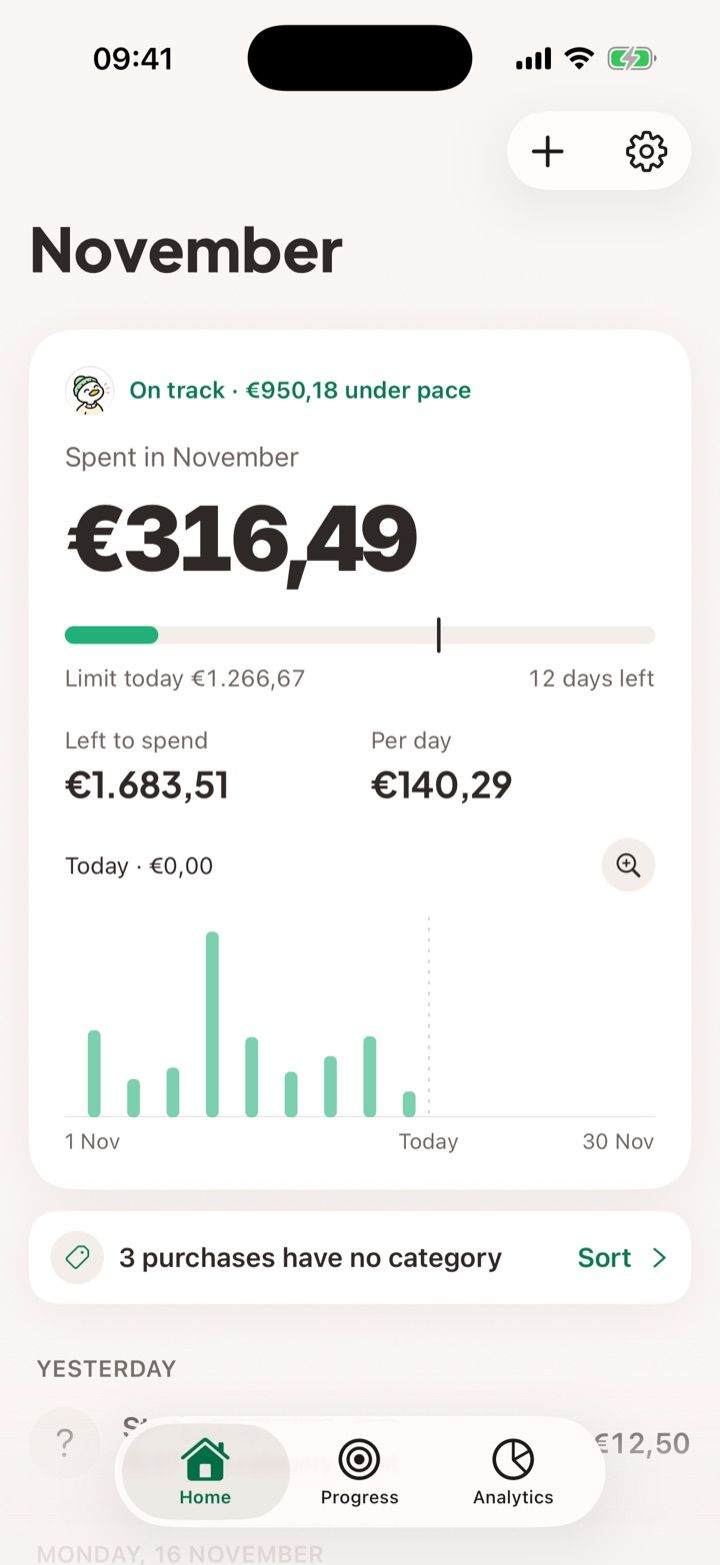
What the Wallet automation can and can’t see
The trigger hands over the amount, the merchant name and the card you used. It doesn’t see your bank balance, purchases made with a physical card, or transfers. For a complete month you still add those by hand, which takes a few seconds each.
Merchant names arrive the way the payment network reports them, so a supermarket can show up as “MERCADONA 1234 VALENCIA”. A good expense tracker cleans these up and remembers the category you pick for each shop.
Why not connect the bank instead?
Bank connections need your login details, often through a third-party aggregator, and they tend to break when the bank changes its security. They also arrive hours or days late.
The Shortcuts route stays on your phone. Nothing leaves the device, there is no account to create, and the purchase is logged the moment you pay, while you still remember what it was.
If purchases stop appearing
Open the automation in Shortcuts and check it is set to Run Immediately. Make sure both Amount and Merchant are set to the input’s values, not to Shortcut Input itself.
In PigPocket, Settings › Capture check shows the last time the automation ran and what it saved, which tells you quickly whether the problem is in Shortcuts or in the app.
Questions
Does it work with every card in Wallet?
It works with the cards you tick when you create the automation. You can edit it later to add or remove cards.
Will it ask me to confirm every payment?
Not if you chose Run Immediately when creating the automation. Otherwise iOS shows a notification you have to tap.